Module 7: Working with Agents
Module 7 of 7
What You Will Be Able to Do
- Explain what makes an agent different from a chat assistant, in one sentence.
- Read a permission prompt and decide, deliberately, whether to approve it.
- Recognize the tasks where an agent is the right tool and the ones where chat is.
- Give an artificial intelligence (AI) tool the files a task needs, and keep the rest out of its reach.
The Core Idea
The Six-Minute Version
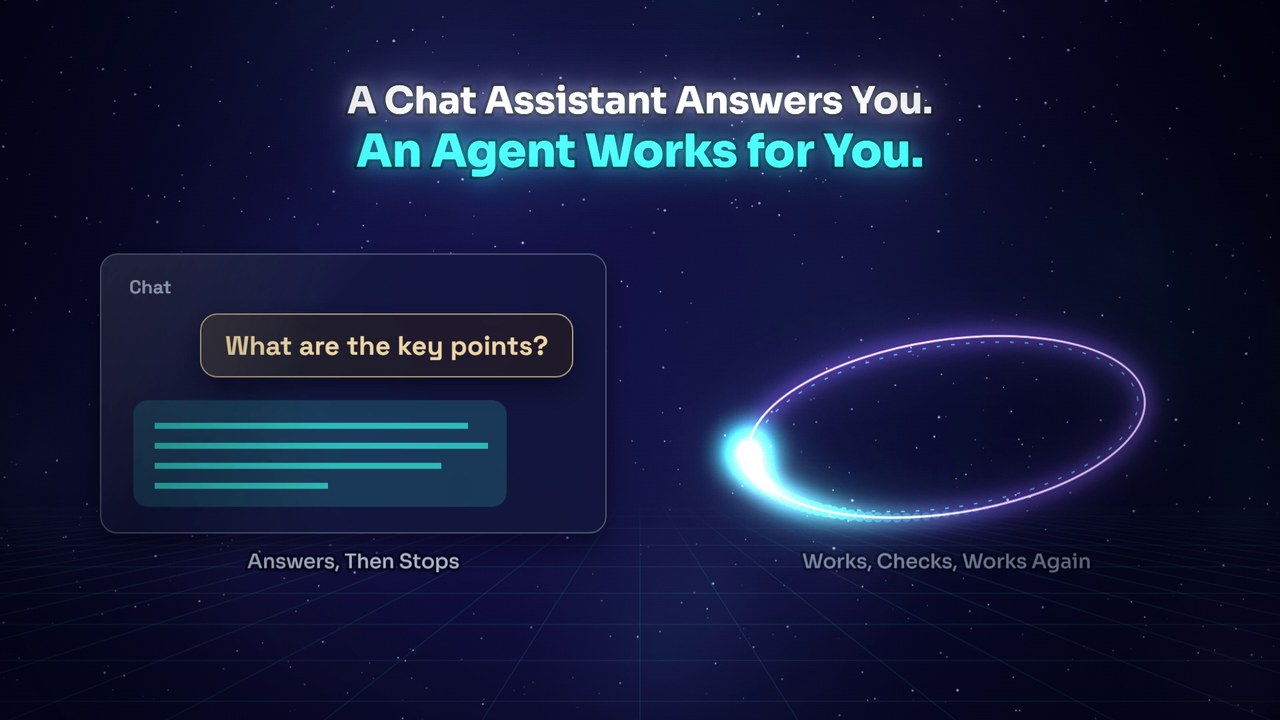
A chat assistant answers you; an agent works for you. The difference is the loop: an agent can act (read a file, run a command, write a document), check its own result, and continue, repeating until the task is done. That loop lets an agent run checks and hand you evidence that the work was completed, not just text that looks right. Those checks improve reliability, but they are the agent grading its own work: they do not replace your review. The loop is also why agents need a control that chat never did: your permission.
Tool Calls, and Why You Are the Gate
When an agent needs something done in the world, it requests an action: read this file, run this command, write this document. The interface executes the action only after the request passes a permission check. In a mode that asks you, that check is you for anything consequential, though agents differ on which steps they treat as routine and run without asking. Some agents now start in an automatic mode instead, where a second AI model reviews requests in your place and lets routine ones run; it cuts down the prompts, and its makers say it does not guarantee safety. For a new kind of task, a mode that asks you is worth the extra clicks, because you see each step before it runs. Your First Agent Session covers the modes, how to switch, and when the others are earned. This is the module's one habit to build: read the request before approving it. A request that matches what you asked for gets a yes; a request that surprises you gets a no and a question. Surprises deserve the closest look after the agent has read something you did not write, such as a downloaded PDF, a web page, or an email, because text inside it can be written to steer the agent (prompt injection); a request to send something out or visit a web address during a task that only needed reading is the classic sign. The permission prompt is not a formality to click through: together with the folder you choose, it is one of your two main controls, and it is enforced by the software, not by the working model's good intentions.
You are the gate
The agent proposes
"May I write this file?"
You decide
Does this match my request?
The action runs
Only what you approved
Deny, and ask the agent why it wanted that.
The gate is enforced by the interface software, not by the working model. In an automatic mode, a second AI model screens requests in your place.
When an Agent Beats Chat
The heavier and more file-bound the task, the more an agent wins. Chat is right for questions, drafts, and thinking; an agent is right when the work lives in files (a folder of readings to summarize, a document to revise consistently, data to reorganize), when it has many steps, or when it should be checked before you see it. There is an economic reason too: an agent writes a small script and lets your computer do mechanical work in seconds, where a chat interface would regenerate every word as paid output. If you regularly paste long documents into a chat window one at a time, that work may suit an agent better.
Setups That Persist
Agents and assistants can both hold standing context so you stop re-explaining your job: a project per course with your syllabus attached, or a brief file in a folder the agent works in. One heuristic carries the whole idea: when the tool makes the same mistake twice, or you type the same correction twice, that correction belongs in the standing setup.
Choosing What the Agent Can See
An agent can read every file in the folder you open for it, and what it reads goes to the model, so the folder you choose decides most of what the model sees. Connected apps widen that view: an email account, a cloud drive, or a calendar you have connected, or your own signed-in browser if you let the agent use it, are within its reach too, and a connection you made for chat can carry over to an agent. Switching off the connections a task does not need keeps what reaches the model to what you chose. Open the folder the task needs rather than your whole drive; if that folder also holds student records or patient information (material the AI Responsible Use Policy covers), copy just the files you need into a fresh folder and open that instead.
Try a new kind of task on copies first, so a misunderstood instruction costs you nothing. An agent you schedule, or leave working in the cloud, acts when you are not there to read its requests, so it pays to give it only what the job needs, keep it to work you could undo, and read its first few results before relying on it. And keep the verification habit that runs through this whole pathway: an agent saying a task is complete is a claim, and you open the result and look, the same way you check a citation.
Self-Check
You asked an agent to summarize the PDFs in a folder, and it asks permission to run a command that installs software. Approve?
Not on that information alone. The request does not obviously match the task, so it gets a no and a question first. Often there is a good reason (a missing PDF-reading tool it needs, which it will name), and after the explanation you may approve it deliberately. The habit being tested is reading the prompt rather than reflexively clicking yes.
An agent would save you an hour on a task involving a folder that contains, among other files, a spreadsheet of student grades. What is the move?
Copy the files the task actually needs into a fresh folder and open that instead. The agent can read anything in the folder you grant, and you cannot always predict what it will open, so scoping the folder is the dependable way to keep student records out of the model.
The agent reports the task finished successfully. Why open the output yourself anyway?
Because "finished" is the agent's claim about its own work, and the pathway's habit for AI claims does not change when the AI can run tools: verify before you rely. Agents make checking cheap (the file is right there), and the two minutes of looking is what makes delegating to one responsible rather than hopeful.
Going Deeper
Color key: Guide
- AI Agents The field guide, including actions that cannot be undone, prompt injection, and a profile of each agent.
- Choosing Your Interface The full comparison of chat, working sessions, and agents, including the economics.
- Your First Agent Session The 20-minute hands-on walkthrough, including the settings worth changing.
- Standing Setups Projects, instructions, and folder briefs that persist.
- Skills The document skills you already have, and how to judge the ones you would have to install.
Content last reviewed October 8, 2026. Review dates are maintained as described on the About page.